RiseGuide Team
To manage your time with an app, first decide what you actually struggle with, then pick the type that fixes it: a to-do app like Todoist or TickTick if you keep forgetting tasks, a calendar or time blocking app like Google Calendar, Sunsama, or Motion if your day has no shape, a focus blocker like Forest or Freedom if you get pulled into distractions, and a tracker like Toggl Track or RescueTime if you have no idea where your hours go. The best app is the one that matches your specific problem and that you will actually open every day.
There is no shortage of time management apps, and that is part of the problem. Open any app store and you will find hundreds of them, all promising to give you your day back. The reason most people bounce off them is not that the apps are bad; it is that they picked one built for a problem they do not have, or one so complex they quit after a week. The best apps for time management are the ones that match how you actually lose time, so this guide sorts the strongest options by the job they do and gives you a clear pick for each.
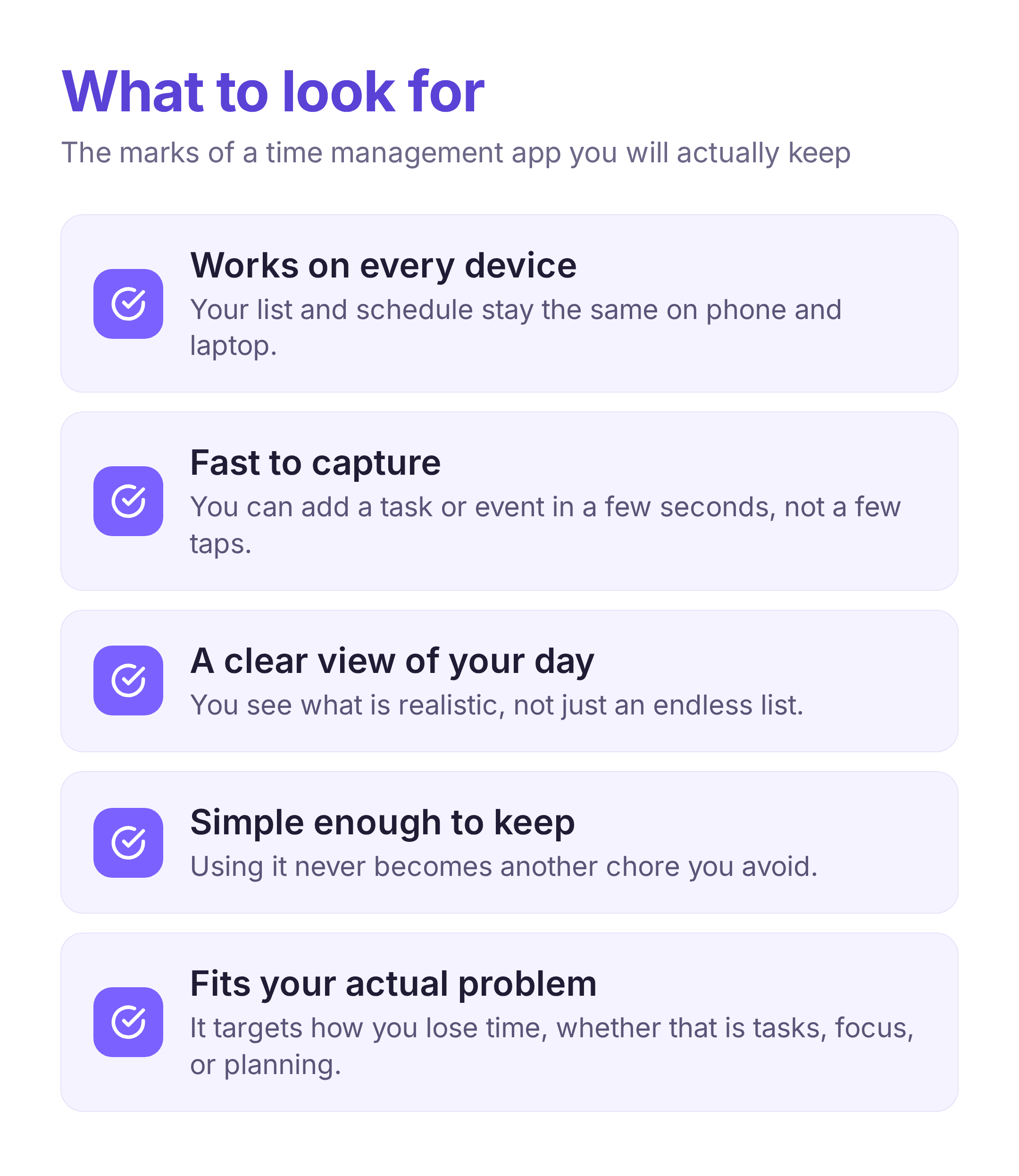
Before you download anything, it helps to know what separates a tool you will keep from one you will delete. The best time management tools tend to do a few things well rather than everything at once.
Look for something that works on every device you use, so your list or schedule is the same on your phone and your laptop. Look for a quick way to capture a task or event in a few seconds, because anything slower will not survive a busy day. Look for a clear view of your day or week, so you can see what is realistic instead of staring at an endless list. And look for something simple enough that using it does not become another chore. A time management app you open every morning beats a powerful one you avoid.
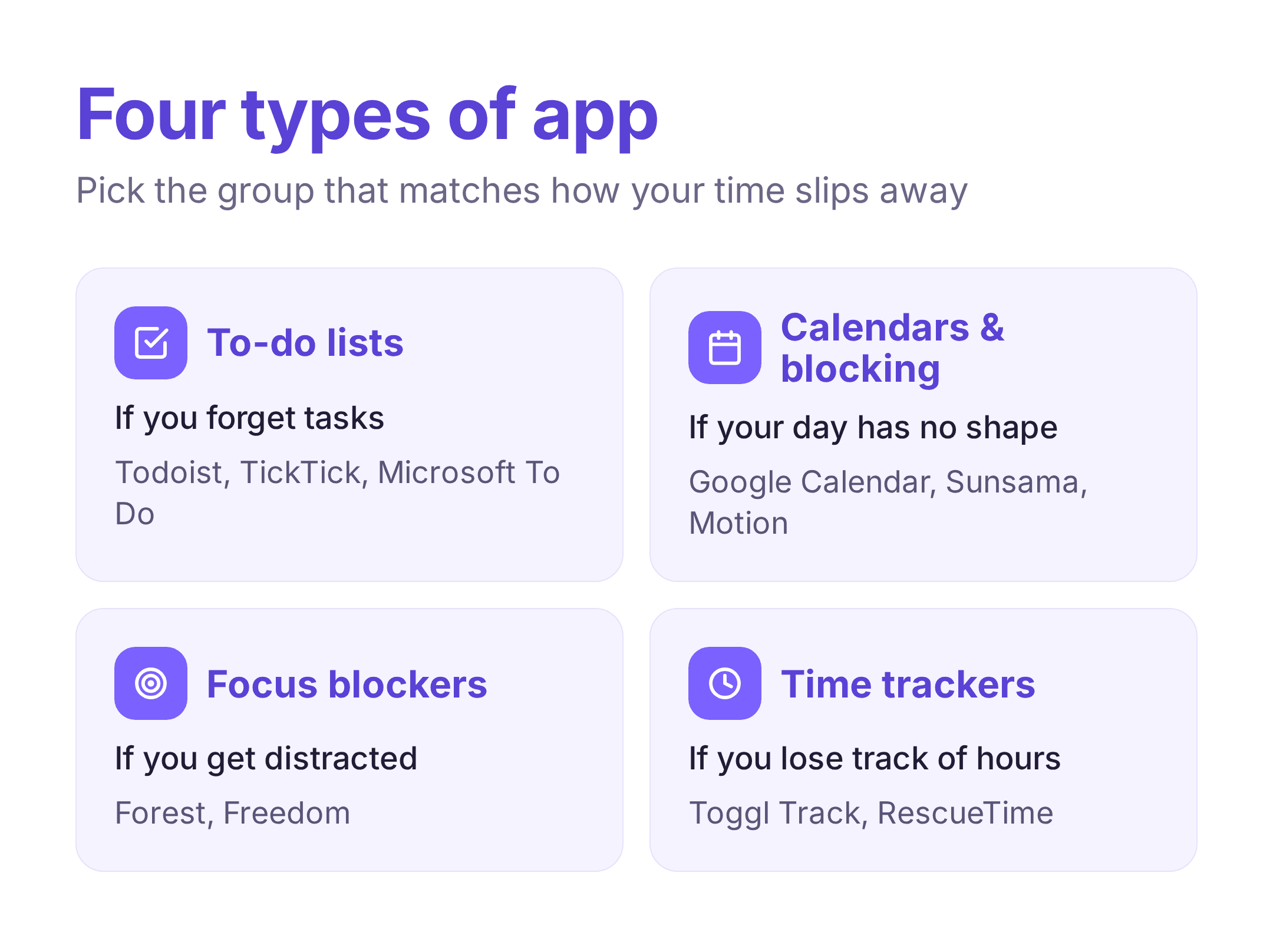
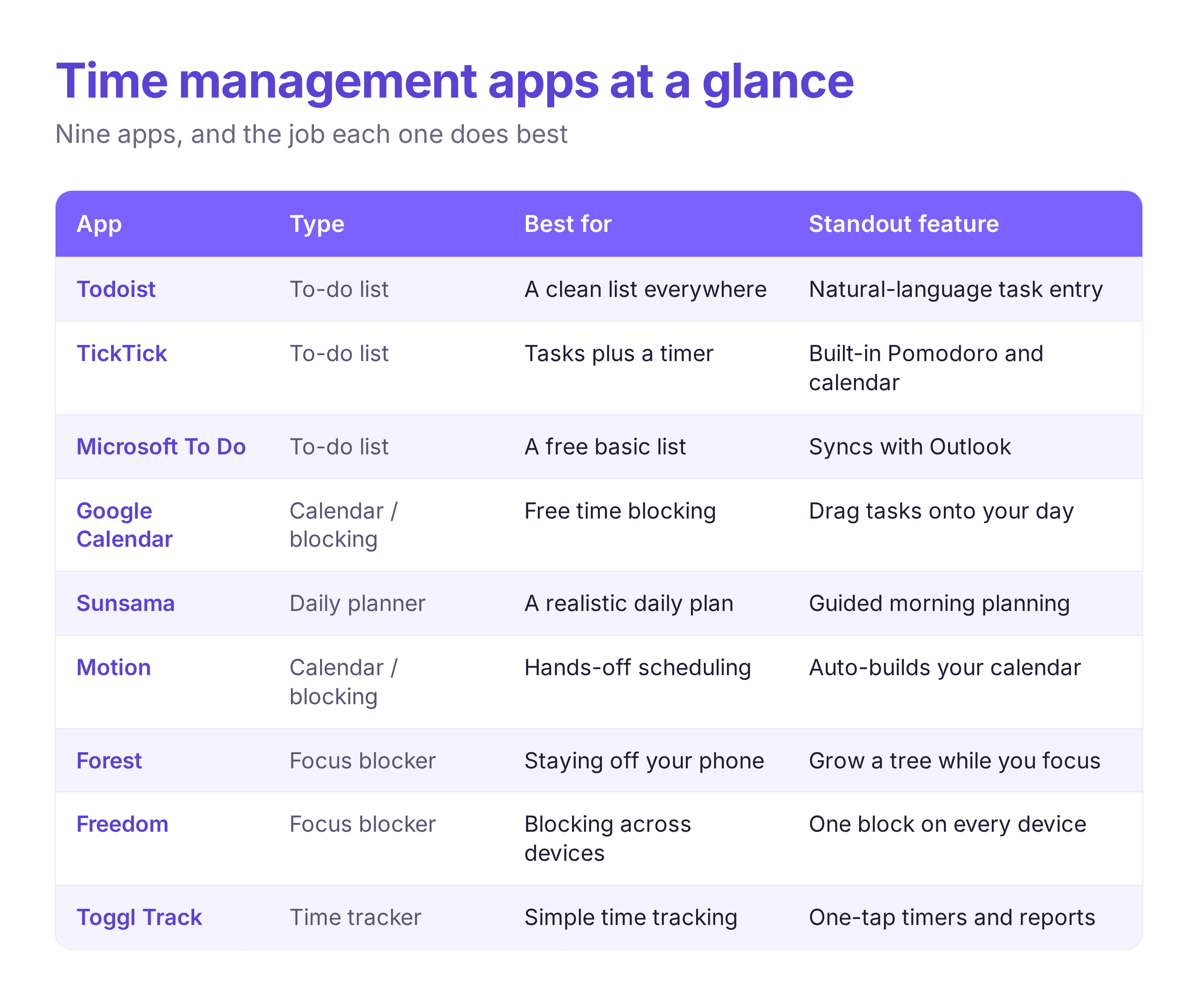
The nine apps below are grouped by the job they do. You do not need all of them. Most people need one, maybe two that work together, so read the group that matches the way your time slips away.
If your main problem is forgetting what you meant to do, or carrying it all in your head, start with a to-do app. These capture tasks quickly and remind you at the right time.
Todoist is the app most people mean when they say to-do list, and it earns that by making capture effortless. You type a task in plain language, like "email Sam Friday at 3pm every week," and it reads the date, time, and repeat for you, then drops it into a clean Today or Upcoming view so you always know what is due now. You can group tasks into projects (work, home, a specific trip), tag them with labels, and mark the few that matter with priority levels, which keeps a long list from turning into noise. It syncs instantly across phone, laptop, and browser, works offline, and connects to your calendar and email so tasks can flow in from where they start. It is the safe default if you mostly need a dependable list rather than a full daily planner.
Best for: anyone who wants one reliable list everywhere.
Watch out for: it manages tasks well but does not show them on a calendar unless you connect one.
TickTick covers the same ground as a plain to-do app, then folds in the tools people usually reach for separately. Alongside quick task capture with natural-language dates, it has a calendar view, a habit tracker, and a built-in Pomodoro focus timer, so you can plan a task, see it on your week, and then run a 25-minute focus session on it without leaving the app. It also has an Eisenhower matrix view that sorts your tasks into urgent and important, which helps on days when everything feels equally pressing. That range makes it a strong single home for someone who wants tasks, time, and focus in one place instead of stitching three apps together.
Best for: people who want tasks, a calendar, and a focus timer in one app.
Watch out for: it fits a lot on the screen, which can feel busy at first.
Microsoft To Do keeps things deliberately simple: lists, due dates, reminders, and a daily "My Day" view that each morning asks you to pick what you will actually tackle today from everything on your plate. Its real strength is how tightly it ties into the Microsoft world, so an email you flag in Outlook shows up automatically as a task, and it syncs through your Microsoft account across every device. Shared lists make it easy to hand tasks back and forth with a partner or teammate. If your work already runs on Outlook and Teams, tasks land where you already are without any extra setup to learn.
Best for: a simple free list, especially if you use Outlook.
Watch out for: it is deliberately basic, so power users will outgrow it.
If your list is long but your day still feels shapeless, the fix is to turn tasks into blocks of time. A time blocking app puts each task on the calendar so you commit to when, not just what.
Most people already have Google Calendar, which makes it the easiest place to start time blocking without learning anything new. Instead of leaving tasks on a list, you drag each one onto an actual hour of your day, color-code it by type of work, and set it to repeat if it is a standing commitment. You can layer several calendars in one view, work, personal, a partner's, so nothing collides, and it sends reminders and handles time zones on its own. Turning a to-do into a block of real time is what stops you from planning twelve hours of work into an eight-hour day, and it is already sitting in your account with nothing new to set up.
Best for: free, familiar time blocking with no new app to learn.
Watch out for: it shows your time but will not decide what matters most for you.
Sunsama is built around a short daily planning ritual rather than an endless list. Each morning it walks you through choosing a realistic handful of tasks, pulling them in from tools you already use like Todoist, Gmail, Trello, and your calendar, and asks you to estimate how long each one will take. As you add tasks it tallies those estimates against the hours you actually have and warns you when you are overcommitting, so you plan the day you can really do instead of a wish list. At the end of the day it runs a quick shutdown review and rolls anything unfinished into tomorrow. It suits people who habitually pack too much into a day and want something to hold them to a plan that fits.
Best for: people who overload their day and need a realistic plan.
Watch out for: it is built around a daily planning ritual, so it is more than you need for a quick list.
Motion takes the work of time blocking off your hands. You add each task with how long it will take and when it is due, and its scheduler automatically slots everything into the open gaps around your meetings, building your day for you. When a task runs long or a meeting appears at short notice, it reshuffles the rest of the plan on its own, so you are not constantly dragging blocks around by hand. It pulls your calendar, tasks, and projects into one place and is aimed at people with packed, meeting-heavy schedules who would rather approve a plan than build one. The trade-off is that it only works as well as the time estimates you give it, so it takes a little trust and setup before the automatic scheduling clicks.
Best for: a packed schedule you would rather have arranged for you.
Watch out for: the automatic scheduling takes some setup and trust before it clicks.
If you know what to do but keep drifting to your phone or another tab, the missing piece is not a list, it is a fence around your attention.
Forest turns leaving your phone alone into a small game. You set a focus timer and a virtual tree starts growing; if you leave the app to check something, the tree withers, so there is a gentle but real cost to picking up your phone mid-session. Stay focused and your trees add up into a little forest over days and weeks, which gives you a running picture of the time you have protected. It is a light, almost playful way to guard a block of deep work, and it fits the specific problem of reaching for your phone out of habit rather than need.
Best for: phone distraction, in a way that feels rewarding.
Watch out for: it guards your phone, not your laptop.
Freedom blocks distracting sites and apps across all your devices at once, so you cannot simply switch to Instagram on your phone the moment you block it on your laptop. You build blocklists, social media, news, games, or specific sites, then either start a session on demand or schedule recurring ones, like every weekday from 9 to noon, so focused time happens automatically without a decision. A stricter locked mode stops you from ending a session early on impulse, which is the whole point on a weak-willed afternoon. It fits people who already know what pulls them off track and want that temptation simply out of reach while they work.
Best for: blocking distractions across every device at once.
Watch out for: you have to decide your block schedules yourself, so it rewards a little planning.
If your honest answer to "where did the day go" is "I have no idea," track it before you try to fix it. A week of data usually shows the leak.
Toggl Track answers the question of where your time actually goes. You start a timer with one tap when you begin something, stop it when you are done, and label it by project or client, and it builds reports that show how your hours really broke down across the day or week. Because starting a timer takes a second, it is easy to keep up all day without it becoming a job in itself, and the weekly summary tends to surprise people about where their time leaks. If pressing start each time is more than you will keep up, RescueTime runs in the background instead, sorts the apps and sites you use into categories on its own, and hands you a weekly report. Either way, a week of honest data is usually what shows you the one change worth making.
Best for: seeing where your time goes so you can change it.
Watch out for: a tracker shows the past; it will not plan your day for you.
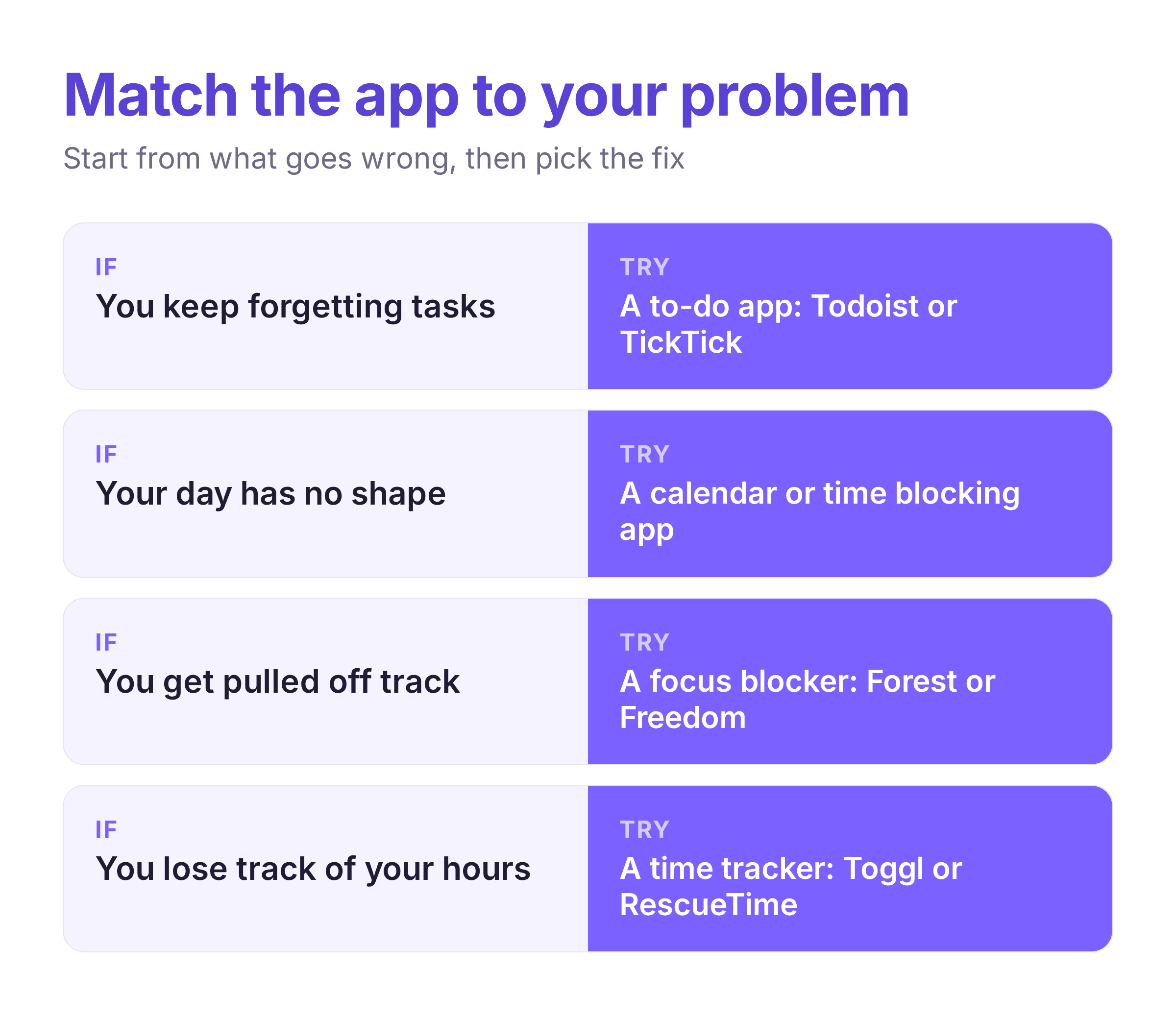
Start from the way you lose time, then pick the type that fixes it. If you keep forgetting tasks, start with a to-do app like Todoist or TickTick. If your day has no shape, use a calendar or time blocking app like Google Calendar, Sunsama, or Motion. If you get pulled off track, add a focus blocker like Forest or Freedom. And if you cannot say where your time goes, track it first with Toggl Track or RescueTime. Some of the best free time management apps, Google Calendar, Microsoft To Do, and the free tier of TickTick, are enough for most people, so there is no need to pay before you know the habit will stick.
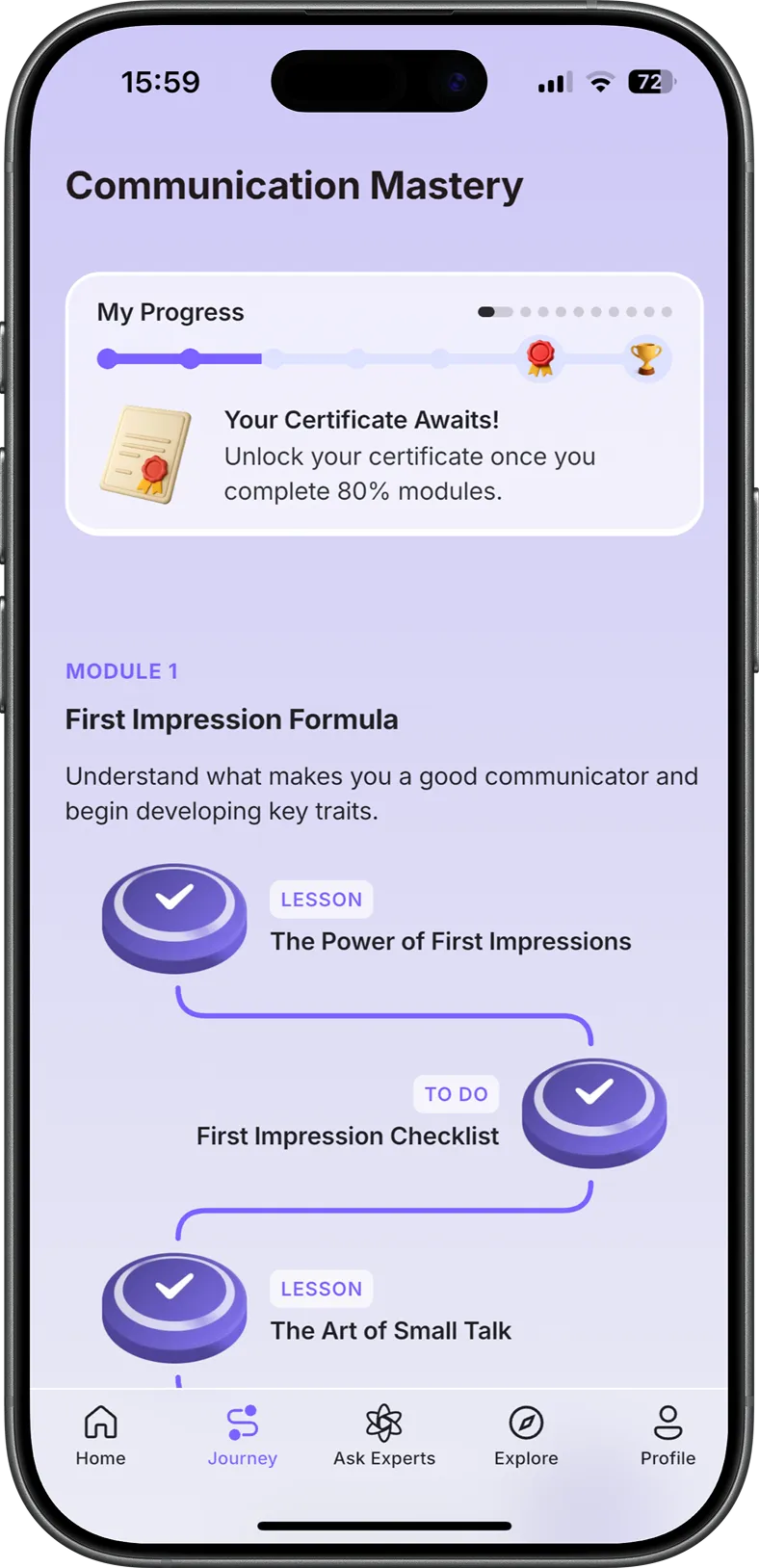
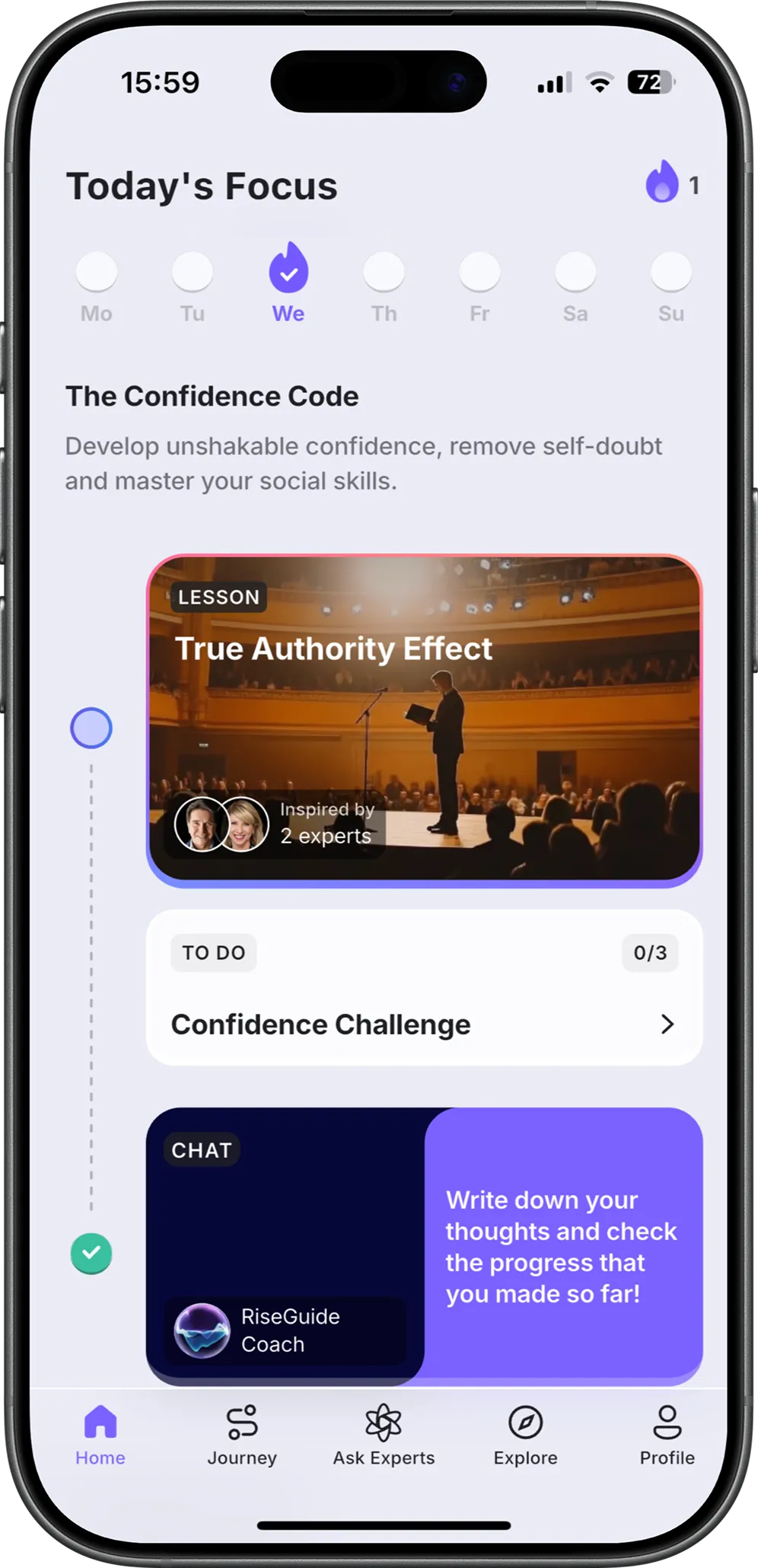
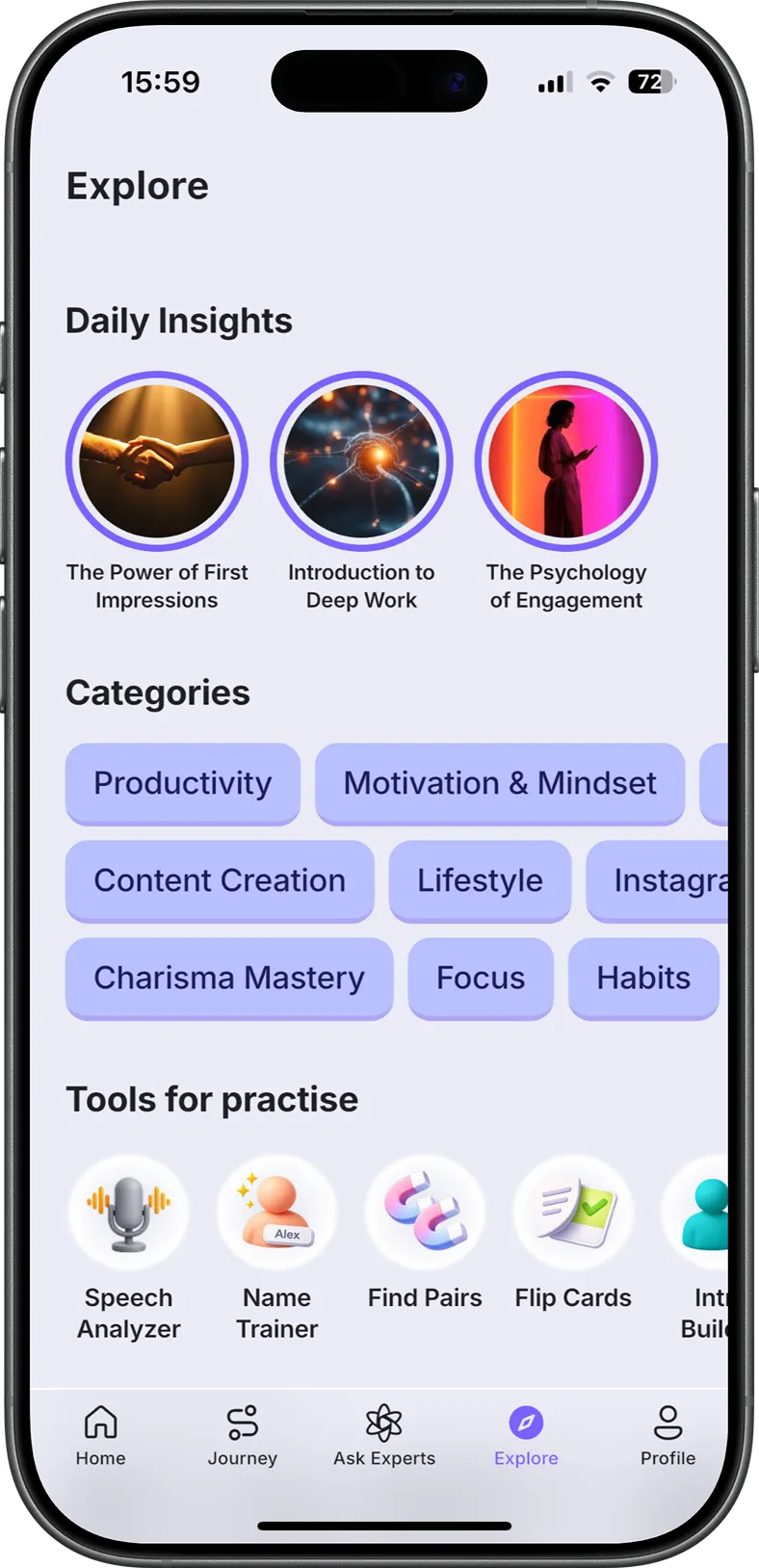
The habit behind the app matters as much as the app itself. A tool can hold your tasks and guard an hour, but planning your day and protecting your focus is a skill you build over time. RiseGuide is where you work on that side of it, with short daily lessons on focus and discipline drawn from expert insights; if consistency is the piece you keep missing, that is a better place to start than a tenth app. Pairing one simple tool with a clear sense of your bigger goals usually beats app-hopping. It also helps to have a steady morning routine so your planning happens at the same time each day, and to keep working on your self-discipline so the plan survives contact with a busy afternoon.
The best app for managing your time is the one built for the way you lose it, and simple enough that you keep using it. Start with the single problem that costs you the most time this week, pick one tool from that group, and give it two weeks before deciding it is not for you. A calendar, a to-do list, and a focus blocker cover almost everyone, and most of them are free to try.
There is no single best one; the best app is the type that matches your problem. Todoist and TickTick are the strongest all-round to-do apps, Google Calendar is the easiest time blocking option, and Toggl Track is the simplest way to see where your time goes.
Google Calendar, Microsoft To Do, and the free versions of TickTick and Toggl Track cover most needs without paying. Start free, and only upgrade once you know you will keep using the app.
Time management apps for ADHD tend to work best when they reduce friction and add external structure: Motion schedules your day for you, TickTick sends firm reminders and a timer, and Forest turns focus into a quick game. The right one is whichever lowers the effort of starting.
Usually one, sometimes two that work together, such as a calendar plus a focus blocker. Running several overlapping apps creates its own admin and is a common reason people give up.