How to Cancel Subscription
& Refund Policy
Follow the official instructions below to cancel your RiseGuide subscription and request a refund.
What Is Subscription Cancellation?
Subscription cancellation means stopping your recurring payments for RiseGuide. After your current subscription period ends, access to paid content will be automatically disabled. No further charges will be made.
Subscriptions renew automatically unless cancelled at least 24 hours before the renewal date. On the subscription purchase page, the renewal terms are clearly displayed below the price and the “Get my plan” button, including information about automatic renewal and the renewal price. By tapping “Get my plan,” you confirm your agreement to these terms and activate your recurring subscription.
Cancellation and Refund. What’s the Difference?
Subscription cancellation and refund are two separate processes.
- Cancellation stops future recurring payments. You will maintain your access to paid content until the end of your current billing period.
- A refund is a separate request to claim the return of funds that have already been paid and is processed in accordance with the Company’s Refund Policy. During the refund review process, access to the app’s content may remain available until the request is resolved.
- Cancelling a subscription does not automatically entitle the user to a refund. Initiating a refund request automatically cancels the subscription and stops all future payments.
How to Cancel a Purchase Made via the RiseGuide Website
If you bought your subscription directly from the RiseGuide website, you can make changes or cancel directly through your RiseGuide account by following these steps:
How to Cancel Your Subscription:
- Log in to your account in the RiseGuide app.
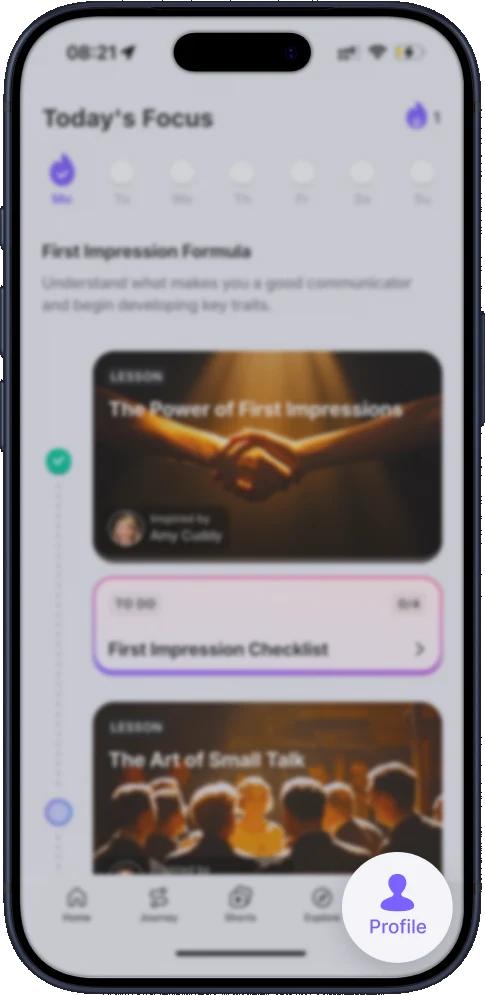
- From the bottom menu, open your Profile page.
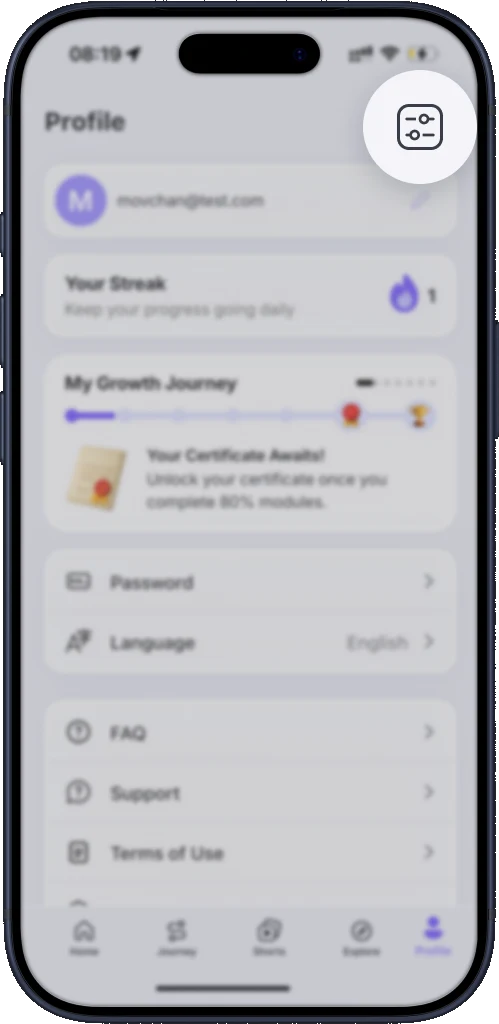
- Click on the icon in the top right corner.
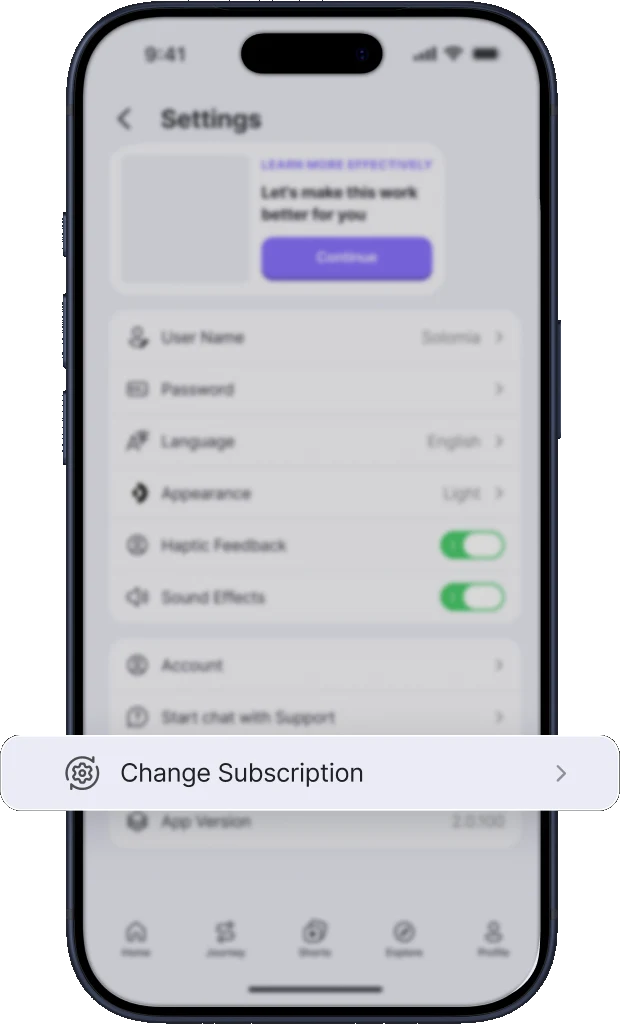
- Find the ‘Manage/Change Subscription’ and tap on it.
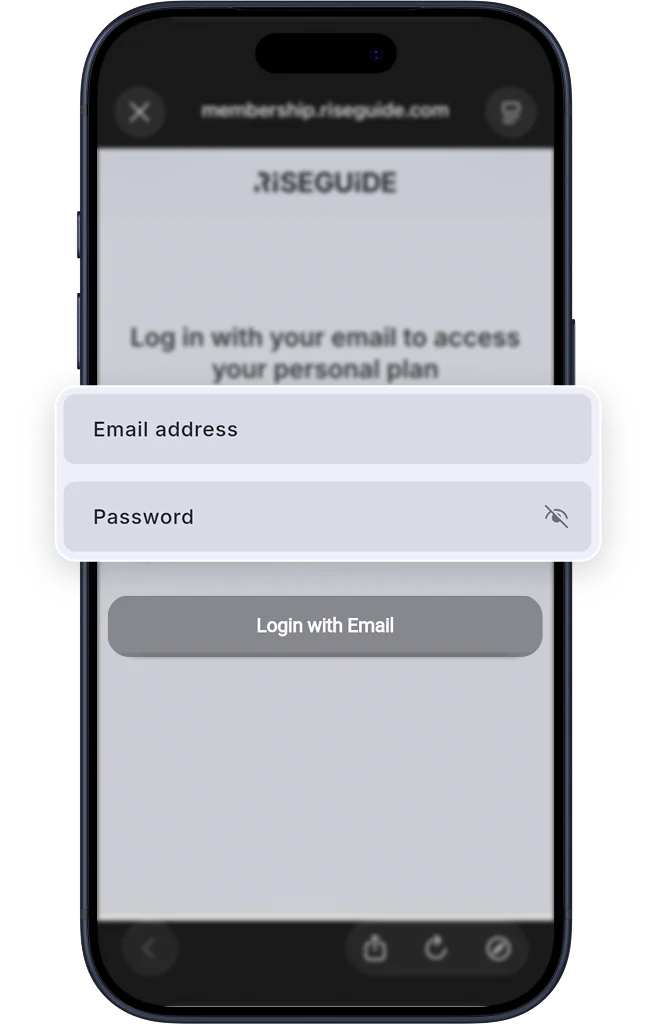
- Log in to your account one more time.
- Click on ‘Turn off auto-renewal’.
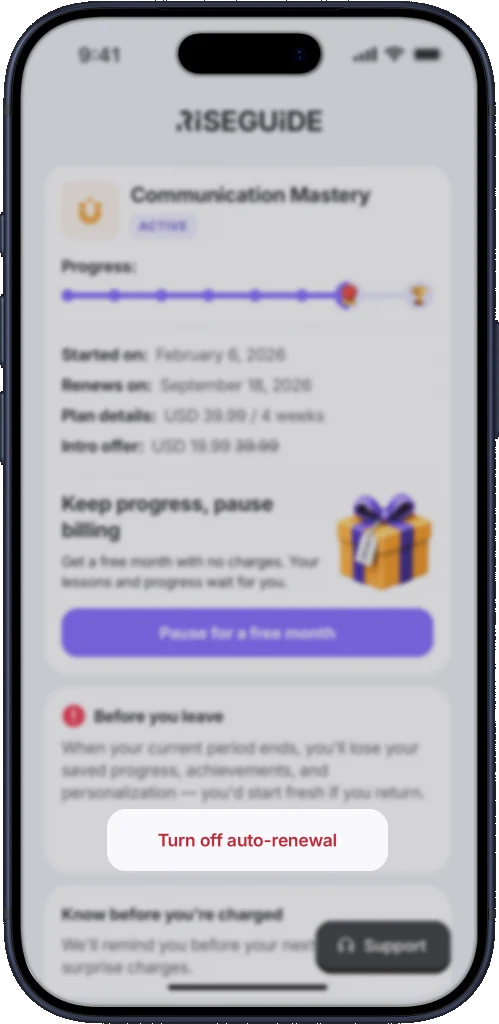
That’s it: confirm the process, and you’re all done! You should receive an email in your inbox confirming the cancellation.
If you face any issues, feel free to press the ‘Contact Support’ button, and our team will help you manage the subscription.
How to Cancel a Purchase Made via the App Store
If you started your subscription or free trial via the App Store, you can manage or cancel it directly through your Apple ID account settings.
On iPhone or iPad:
- Open the Settings app.
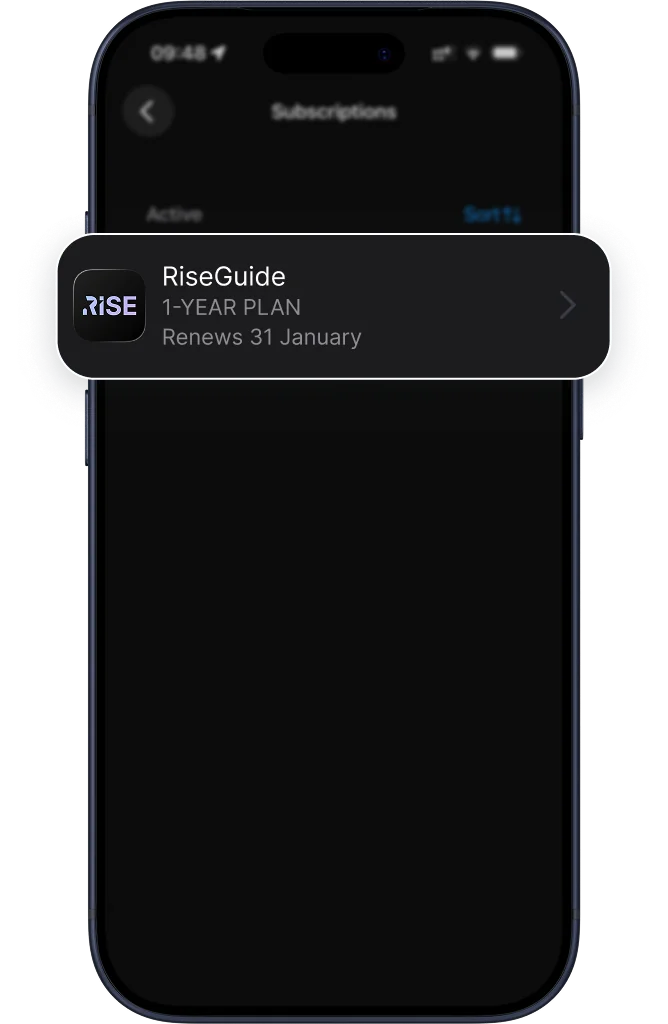
- Tap your name at the top, then tap Subscriptions.
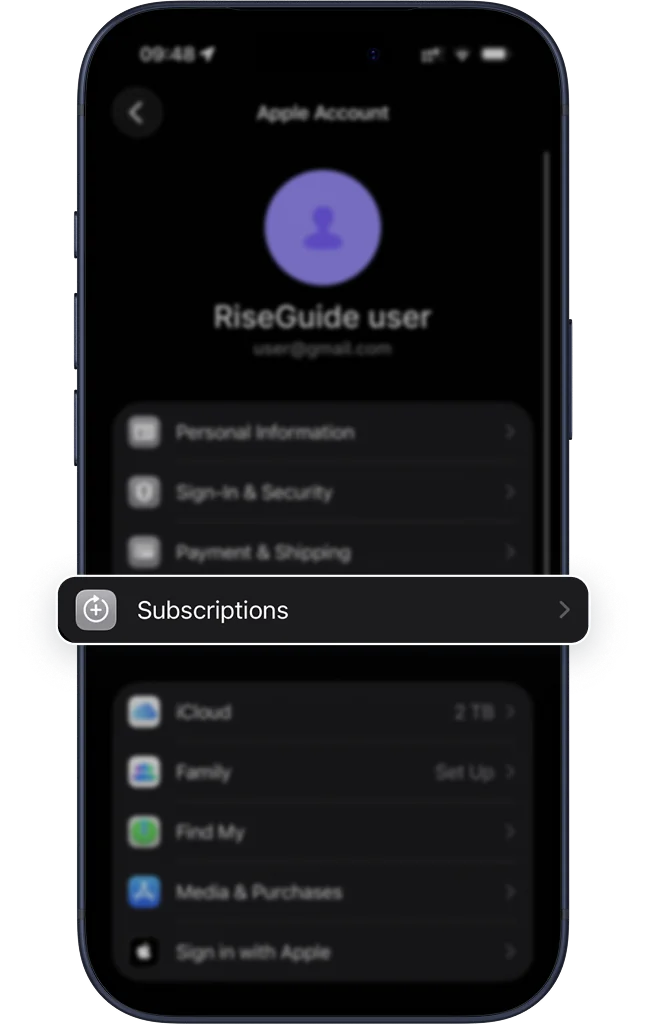
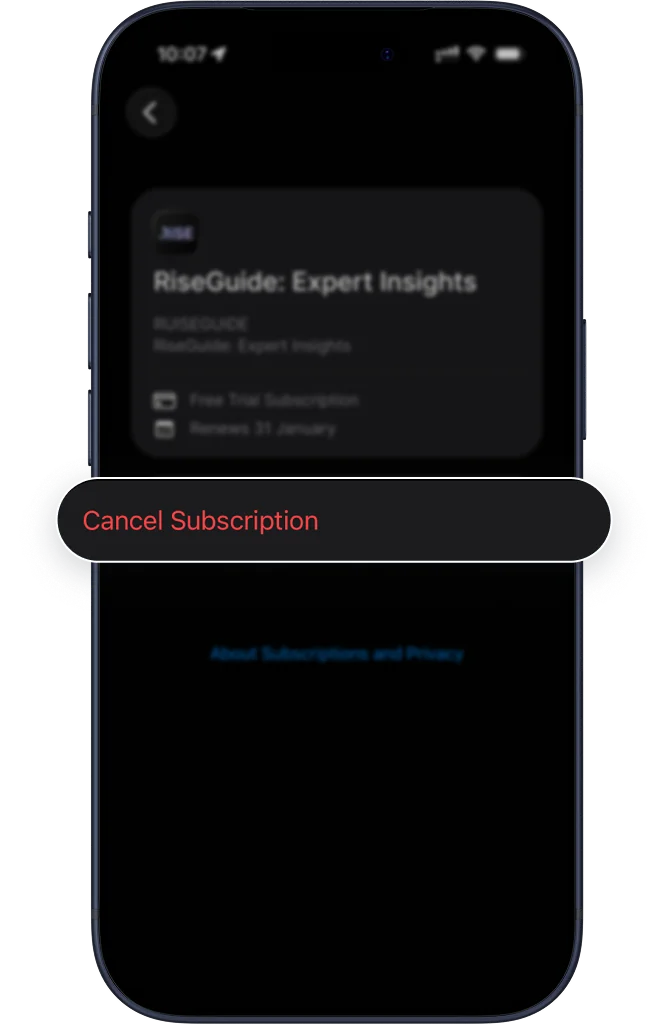
- Find the subscription you want to cancel and tap Cancel Subscription.
On Mac:
- Open the App Store and click your name at the bottom of the sidebar.
- Click View Information at the top of the window.
- Scroll to Subscriptions and click Manage. Find the subscription and cancel it.
How to Cancel a Purchase Made via Google Play
If your subscription or trial was started via Google Play, you can manage or cancel it through your Google Play account settings.
How to Cancel Your Subscription:
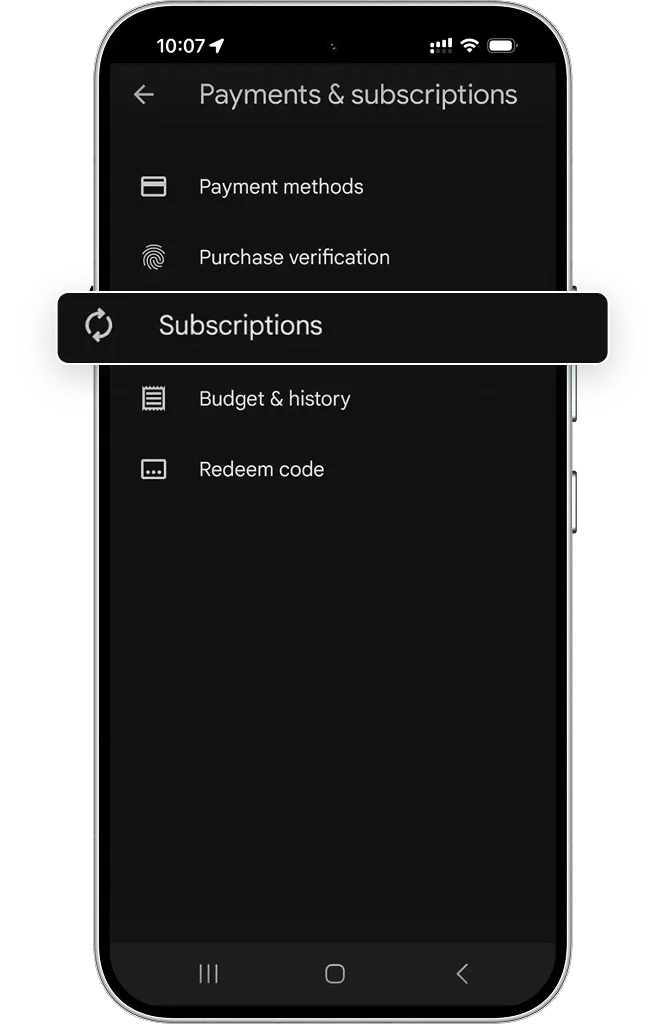
- Open the Google Play Store on your device.
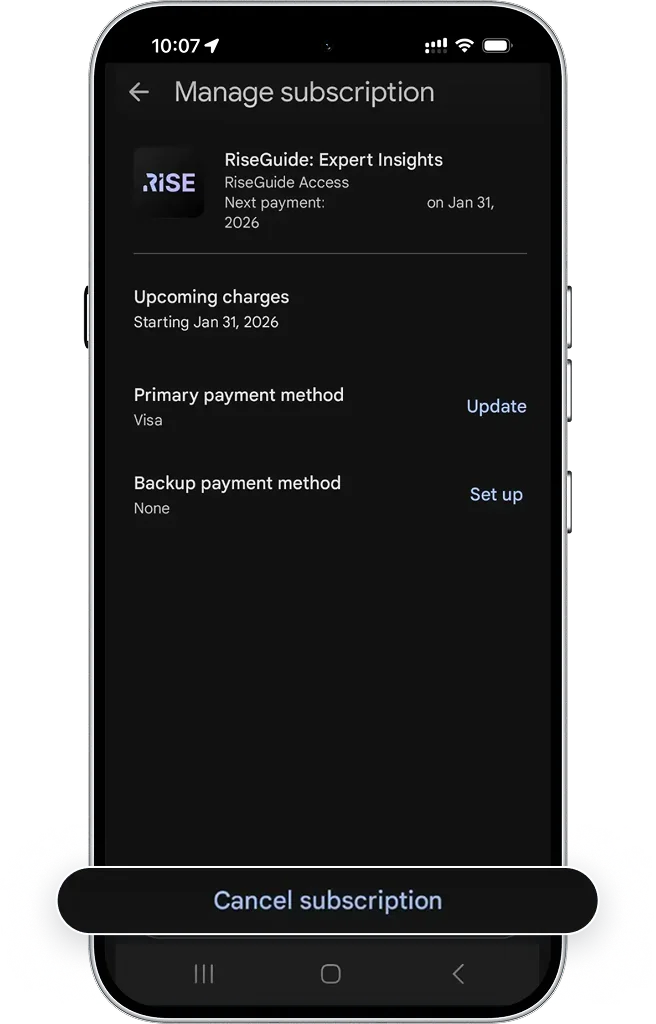
- Tap your profile icon and go to Payments & Subscriptions > Subscriptions.
- Find the subscription you want to cancel and tap Cancel subscription.
FAQ
In some cases, a user may have more than one active subscription at the same time. This may occur intentionally or unintentionally, for example, if the user created multiple accounts, subscribed using different platforms or email addresses, or due to a system or payment processing error.
If you notice unexpected charges after cancellation, please contact our Support Team via [email protected] so we can help you resolve this as soon as possible. In some cases, the cancellation was initiated after the renewal date — in this case, the charge was processed automatically before the cancellation went through.
If you don’t see a RiseGuide subscription under your Apple ID or Google account, but you still see charges on your bank statement, it’s likely that the subscription was purchased directly on the RiseGuide website.
Website purchases are processed as online payments and do not appear in Apple App Store or Google Play subscriptions. In this case, you’ll need to manage or cancel your subscription through the RiseGuide app (please see instructions above) or by contacting our Support Team.
If you’re unsure where you subscribed, we recommend reaching out to our support team so we can help locate your purchase and guide you through the next steps.
At the moment, we don’t offer an option to pause or temporarily suspend your subscription. However, you can cancel your subscription at any time before the next renewal, and keep access to the content until the end of your current plan. If later you decide to come back, you can always reactivate your subscription again.
Need More Help?
If you experience any issues or have questions about your subscription, our Support Team is always available to assist you via email at [email protected] or you can contact us at riseguide.com/contact-us.
Refund Policy
How to Request a Refund for a Purchase Made via the RiseGuide Website
If you purchased your RiseGuide subscription directly on riseguide.com, refund requests are reviewed individually by our Support Team according to our Refund Policy.
How to Request a Refund
To submit a refund request, contact our Support Team via email at [email protected] or through our Contact Form. Please provide the details of your purchase so we can process your request efficiently.
What to Expect
- Information Gathering: We may ask for additional details to identify your purchase and verify the circumstances. After receiving your refund request, we will review it and get back to you within 2h.
- Processing Time: Refunds can take some time to reach your account, depending on your bank, payment method, and currency. Refunds are processed in line with the payment method used for the original purchase.
- Confirmation: Once we initiate your refund, you will receive a confirmation email that the refund has been initiated. Please note that final processing is handled by your bank.
Why May We Ask for Additional Information?
To review your request correctly, we may ask for additional details, such as:
- the email used for the purchase;
- payment method details;
- confirmation of the reason for your request.
In some cases, we may ask you to complete a short feedback form. This helps us process your request faster and ensure accuracy.
Why Refunds May Not Be Possible?
Refund requests are reviewed carefully and individually. However, in some cases, a refund may not be possible, even if a request is submitted. This can happen for the following reasons:
- Platform-specific policies
Purchases made through the Apple App Store or Google Play are subject to their respective refund policies, and refund decisions are made solely by those platforms. - Disputes or chargebacks
If a dispute or chargeback has been initiated with a bank or payment provider, we may be unable to process a refund while the case is under review.
Our goal is to review every request fairly and transparently, based on the circumstances of each purchase and the limitations of payment systems.
Disputes and Chargebacks
For questions related to charges or subscription status, we recommend contacting our Support Team first — it allows us to review the situation and help resolve it efficiently.
If a dispute or chargeback is initiated with your bank or PayPal before contacting our Support Team, we are unable to process a refund while the case is under review.
How to Request a Refund for a Purchase Made via the App Store
If you purchased your RiseGuide subscription through the App Store, we cannot process refunds on your behalf. You can request a refund directly from Apple by following these steps:
On Your iPhone or iPad
- Open the Settings app.
- Tap your name at the top, then go to Subscriptions.
- Find your RiseGuide subscription.
- Tap Cancel Subscription if it’s active, then follow Apple’s instructions to submit a refund request.
Via Web Browser
- Visit the Apple Report a Problem page and sign in with your Apple ID.
- Locate your RiseGuide subscription.
- Follow the on-screen instructions to request a refund.
How to Request a Refund for a Purchase Made via Google Play
If you purchased your RiseGuide subscription through the Google Play Store, we cannot process refunds on your behalf. You can request a refund directly from Google by following these steps:
On Your Android Device
- Open the Google Play Store app.
- Tap your profile icon at the top-right and go to Payments & Subscriptions > Subscriptions.
- Find your RiseGuide subscription.
- Tap Cancel subscription if it’s active, then follow the prompts to submit a refund request.
Via Web Browser
- Go to the Google Play Refund Request page and log in with your Google account.
- Find your RiseGuide subscription.
- Follow the on-screen instructions to submit your refund request.
Still have any questions? Feel free to contact our Support via [email protected] or through our Contact Form.